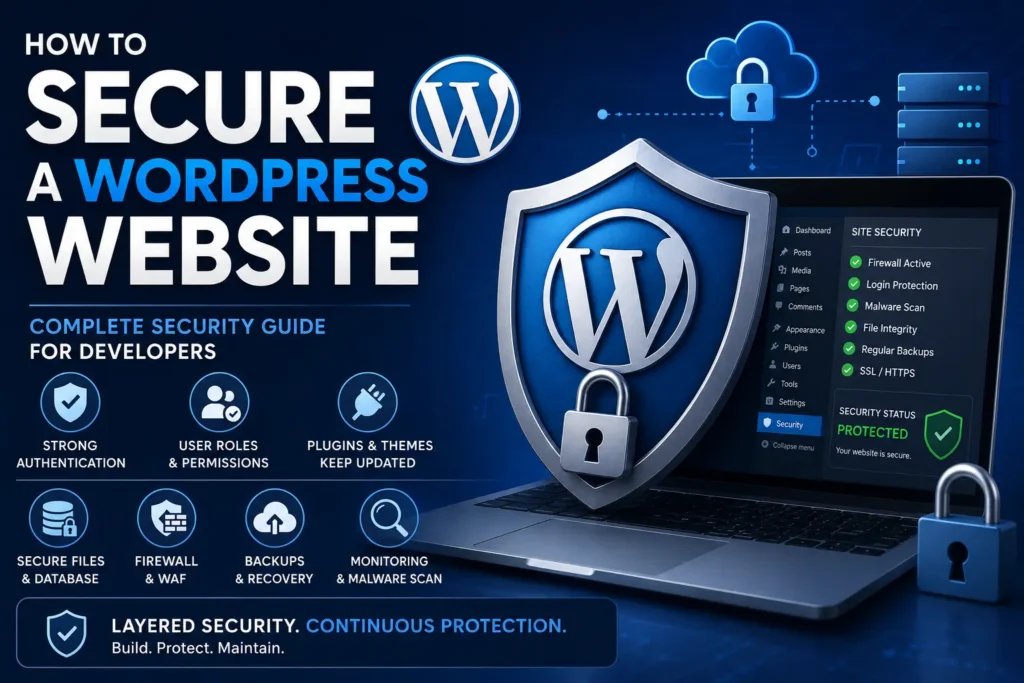
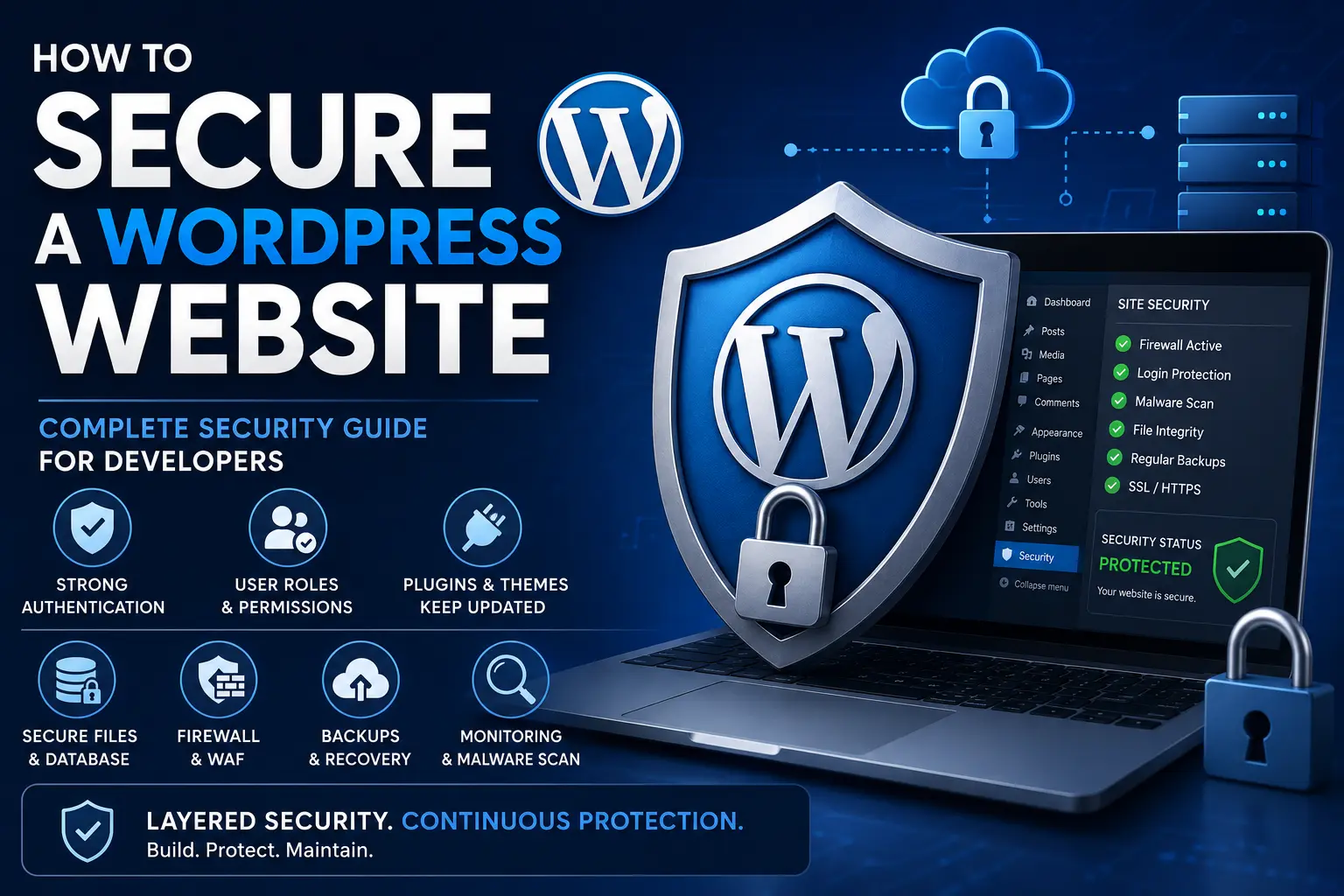
How to Secure a WordPress Website: Complete Security Guide for Developers
A WordPress website can be fast, beautiful, and feature-rich — but none of that matters if the website is not secure.
As a WordPress developer, security should not be something you think about after the website gets hacked.
It should be part of your development process from the beginning.
A secure WordPress website is not created by installing one security plugin.
It requires multiple layers of protection:
Secure Hosting
→ HTTPS
→ Secure WordPress Configuration
→ Strong User Authentication
→ Updated Core, Plugins & Themes
→ Secure Development Practices
→ Firewall / WAF
→ Malware Scanning
→ Backups
→ Monitoring
→ Regular Maintenance
In this guide, we will cover the most important WordPress security practices that developers should follow for both new and existing websites.
First: Understand That No Website Is 100% Secure
Before discussing security techniques, let’s understand one important thing.
There is no such thing as: “I installed a security plugin, so my website is 100% secure.”
Security is about reducing risk.
Even if your WordPress installation is perfectly configured, vulnerabilities can still appear in:
- Plugins
- Themes
- WordPress core
- Server software
- Hosting configuration
- Third-party services
- Custom code
- User accounts
WordPress itself recommends keeping the core, plugins, and themes updated and choosing software that is actively maintained. (WordPress Developer Resources)
So instead of looking for one magical security solution, think in terms of layers of security.
The WordPress Security Layers
A strong WordPress security setup can look like this:
Layer 1 — Hosting Security
Secure server and hosting environment.
Layer 2 — HTTPS / SSL
Encrypt communication between users and your website.
Layer 3 — WordPress Security
Secure WordPress configuration.
Layer 4 — User Security
Strong passwords, roles, 2FA and least privilege.
Layer 5 — Plugin & Theme Security
Only trusted, updated software.
Layer 6 — Application Security
Secure PHP, JavaScript, forms, APIs and database queries.
Layer 7 — Firewall / WAF
Block malicious requests.
Layer 8 — Malware Monitoring
Detect suspicious changes and malware.
Layer 9 — Backups
Recover when something goes wrong.
Layer 10 — Monitoring
Know when something unusual happens.
This layered approach is much stronger than depending on a single plugin.
1. Start With Secure Hosting
Security starts before WordPress. Your hosting environment matters. A cheap hosting plan with poor server security can create problems even if your WordPress configuration is perfect.
When selecting hosting, look for:
- Regular server updates
- SSL support
- Firewall protection
- Malware monitoring
- Backup options
- SFTP/SSH access
- Good account isolation
- Reliable support
- Appropriate PHP version
- Database security
If your hosting provider gives you SFTP, prefer SFTP over plain FTP because SFTP encrypts credentials and data during transmission. WordPress’s hardening documentation specifically recommends SFTP when available. (WordPress Developer Resources)
2. Always Use HTTPS
Your website should use HTTPS.
For example:
Bad:
http://example.com
Good:
https://example.com
HTTPS encrypts data transferred between the visitor and your website.
This is especially important for:
- Login pages
- Contact forms
- Customer accounts
- Checkout
- Membership websites
- Admin areas
Make sure your SSL certificate is valid and that the website consistently uses HTTPS.
Also check for:
- Mixed content
- HTTP redirects
- Incorrect canonical URLs
- HTTP versions of important pages
3. Keep WordPress Updated
This is one of the most important security practices.
Keep these updated:
- WordPress core
- Plugins
- Themes
- PHP
- Server software
WordPress recommends keeping the software stack updated, and its documentation specifically emphasizes updates as a key security practice. (WordPress Developer Resources)
An outdated plugin can contain a known vulnerability.
If a vulnerability becomes publicly known and your website is still running an old version, attackers may try to exploit it.
4. Don’t Keep Unused Plugins
If a plugin is not being used, don’t leave it installed unnecessarily.
For example:
You installed a plugin for a temporary feature. Later you stop using it. Don’t simply deactivate it and forget about it. If you don’t need it:
Deactivate → Delete
WordPress’s hardening guidance also recommends deleting plugins that are not being used. (WordPress Developer Resources)
The same principle applies to themes.
Keep your active theme and, if useful, a suitable fallback theme — but don’t keep dozens of old themes installed.
5. Never Use Nulled Themes or Plugins
This deserves its own section.
Never install nulled or pirated WordPress themes/plugins on a production website.
You may find:
“Premium Plugin — Free Download”
or
“Elementor Pro Free”
or
“Premium Theme Free”
It may look like you’re saving money. But you have no reliable way to know what has been modified in the package.
It could contain:
- Backdoors
- Malware
- Hidden admin accounts
- Spam code
- Malicious redirects
- Data theft
- SEO spam
- Remote code
For a client website, this is an unnecessary risk. Use official sources and legitimate licenses.
6. Choose Plugins Carefully
Don’t install a plugin just because it has many downloads.
Before installing a plugin, check:
- Is it actively maintained?
- When was it last updated?
- Is it compatible with your WordPress version?
- Does it have a good reputation?
- Is the developer/company trustworthy?
- Does it have a proper support channel?
- Does the plugin actually need access to sensitive data?
A plugin can introduce security vulnerabilities even if WordPress itself is fully updated.
Wordfence’s scanner, for example, checks for known vulnerable or outdated plugins and themes. (Wordfence)
7. Use Strong User Passwords
Never use passwords like:
admin123
password123
wordpress
companyname123
12345678
Use long, unique passwords. Every important account should have its own password.
Especially:
- WordPress admin
- Hosting
- Database
- FTP/SFTP
- SSH
- Domain registrar
- Cloud services
- CDN
- Payment gateways
And never share the same password across multiple websites.
8. Avoid Using “admin” as the Administrator Username
If you are creating a new WordPress website, avoid using: admin as the main administrator username. Attackers commonly target predictable usernames. Use a unique administrator username instead. However, changing the login username alone is not a complete security solution.
It should be combined with:
- Strong password
- 2FA
- Login protection
- Rate limiting
- Monitoring
9. Enable Two-Factor Authentication
This is one of the best improvements you can make to WordPress login security.
Without 2FA:
Username + Password
With 2FA:
Username + Password + Authentication Code
Even if an attacker gets your password, they may still be unable to log in without the second factor.
Wordfence currently provides 2FA in its free security plugin, using authenticator applications rather than SMS-based codes. (Wordfence)
For important accounts, enable 2FA wherever possible.
Especially:
- Administrator
- Editors with sensitive access
- Hosting account
- Domain account
- Email account
- Security services
10. Use the Principle of Least Privilege
This is an important concept for developers. Give users only the permissions they actually need.
For example:
A content writer may only need: Author
They don’t need: Administrator
A designer may need limited access. A developer may need administrator access during development. But once the work is finished, unnecessary accounts and permissions should be reviewed. The fewer users with powerful permissions, the lower the risk of accidental or malicious changes.
11. Remove Old User Accounts
Check: Users → All Users
Look for:
- Old developers
- Previous employees
- Former agencies
- Temporary accounts
- Unknown users
- Suspicious administrators
If someone no longer needs access: Remove the account or reduce its role. Don’t keep old administrator accounts “just in case.”
12. Protect the WordPress Login
The WordPress login page is frequently targeted by automated bots.
Attackers may repeatedly try:
- Common usernames
- Password lists
- Leaked credentials
- Automated brute-force attacks
You can protect login using:
- 2FA
- CAPTCHA where appropriate
- Rate limiting
- Login attempt protection
- WAF rules
- Strong passwords
- Monitoring
Wordfence’s free plugin includes firewall protection, login security, CAPTCHA, and brute-force protection. (Wordfence)
13. Don’t Assume Hiding wp-login.php Makes WordPress Secure
Changing the login URL can reduce some automated noise. But it is not a replacement for real security.
Don’t think:
“I changed wp-login.php, therefore my website is secure.”
A strong security setup still requires:
- Authentication security
- 2FA
- Firewall
- Updates
- Backups
- Monitoring
Security through obscurity should be an additional layer, not your main defense.
14. Protect Against Brute-Force Attacks
A brute-force attack attempts many username/password combinations. Your website should limit these attempts.
Possible protections include:
- Login attempt limiting
- CAPTCHA
- 2FA
- WAF
- IP/rate limiting
- Strong passwords
Wordfence’s firewall includes protection against brute-force login attempts. (Wordfence)
15. Use a Web Application Firewall
A WAF is one of the most useful security layers. It sits between incoming traffic and your website and can inspect requests for malicious activity.
A WAF can help protect against attacks such as:
- SQL injection
- XSS
- Malicious requests
- Exploit attempts
- Bot attacks
- Brute-force activity
- Some automated attacks
WordPress’s official hardening documentation describes both WordPress-level firewalls and server/reverse-proxy WAFs such as those provided by services like Cloudflare and Sucuri. (WordPress Developer Resources)
16. Wordfence: Free vs Premium
One popular option is Wordfence.
The free version includes:
- Firewall
- Malware scanner
- Login security
- 2FA
- CAPTCHA
- Vulnerability detection
- File integrity checks
- Alerts
Wordfence documents these features for its free plugin. (Wordfence)
The Premium version adds faster access to new firewall rules and malware signatures, along with features such as real-time IP blocklisting. (Wordfence)
Free Wordfence
Good for:
- Small business websites
- Portfolio websites
- Blogs
- Many normal WordPress websites
Premium Wordfence
Worth considering when:
- Website is business-critical
- Website handles valuable customer data
- You need faster protection against newly discovered threats
- You need additional threat intelligence
- Downtime would be expensive
17. Sucuri Security: Free Option
Another option is Sucuri Security.
Its free WordPress plugin provides features including:
- Security auditing
- File integrity monitoring
- Remote malware scanning
- Blocklist monitoring
- Security hardening
- Security alerts
- Post-hack tools
Sucuri documents these features as part of its free WordPress plugin. (Sucuri)
However, remember an important distinction: A WordPress security plugin is not the same thing as a cloud WAF.
Sucuri’s Website Firewall is a separate paid service that can filter traffic before it reaches your server. (Sucuri)
18. Don’t Install Multiple Full Security Plugins
This is a common mistake.
For example:
Wordfence
Sucuri Security
Another Security Plugin
Another Firewall
doesn’t automatically mean:
“4x more secure.”
It can create:
- Conflicts
- Duplicate scans
- Extra server load
- Confusing firewall rules
- False positives
- Difficult troubleshooting
Even Wordfence’s hacked-site guidance warns against installing multiple security plugins at once. (Wordfence)
Choose your security architecture carefully.
19. Disable WordPress File Editing
By default, WordPress can allow administrators to edit plugin and theme PHP files from the dashboard. That is dangerous if an attacker gains administrator access. WordPress recommends disabling dashboard file editing using:define( 'DISALLOW_FILE_EDIT', true );
This removes the built-in theme/plugin file editor. WordPress notes that this does not stop every possible attack, but it can prevent an attacker who gets dashboard access from using that editor to execute malicious PHP code. (WordPress Developer Resources)
Add this to wp-config.php.
20. Protect wp-config.php
wp-config.php contains sensitive configuration information.
Depending on your hosting setup, this can include:
- Database name
- Database username
- Database password
- Authentication keys
- Other configuration values
WordPress documents additional hardening options for wp-config.php, including stricter file permissions and, where appropriate, placing the file one directory above the WordPress installation. (WordPress Developer Resources)
Don’t make wp-config.php publicly accessible.
21. Use Correct File Permissions
Incorrect file permissions can create security problems. WordPress recommends restricting write access as much as practical.
A commonly used starting point is:
Directories: 755
Files: 644
But permissions depend on the hosting/server configuration.
wp-config.php generally deserves stricter protection.
Don’t blindly run permission commands on production servers without understanding the server’s user/group configuration. WordPress’s documentation also warns that permission requirements can vary by environment. (WordPress Developer Resources)
22. Use SFTP Instead of FTP
If you need to access website files, prefer:
SFTP
instead of plain:
FTP
SFTP encrypts the connection, including credentials and transferred data. (WordPress Developer Resources)
Even better, where appropriate, use secure SSH-based workflows.
23. Keep PHP Updated
WordPress security is not only about WordPress. Your PHP version also matters.
An old PHP version may:
- Stop receiving security fixes
- Have known vulnerabilities
- Cause compatibility problems
- Prevent you from using newer WordPress/plugin versions
Use a currently supported PHP version that is compatible with your website and plugins. Before changing PHP on an old production website:
Backup → Test → Change → Monitor
24. Secure Your Custom PHP Code
This is especially important for developers. A security plugin cannot automatically fix insecure custom code.
For example, don’t directly trust user input.
Bad approach: echo $_GET['name'];
User input should be:
Validated → Sanitized where appropriate → Escaped when output
For database queries, use WordPress APIs and prepared queries rather than directly inserting user input into SQL.
For example, use: $wpdb->prepare() when appropriate.
25. Escape Output
If data comes from:
- User input
- Database
- URL parameters
- Custom fields
- API responses
don’t blindly print it into HTML. Use the correct escaping function based on the output context.
Examples include:
esc_html()esc_attr()esc_url()The goal is to prevent unsafe data from becoming executable HTML or JavaScript.
26. Use Nonces for Sensitive Actions
If you are developing custom WordPress functionality, don’t assume that hiding a button protects an action. Use WordPress nonces where appropriate to help protect against CSRF.
For example:
wp_nonce_field()and:
check_admin_referer()or the appropriate nonce verification functions for the context.
But remember: A nonce is not authentication and is not authorization.
You should still check whether the current user has permission to perform the action.
27. Always Check User Capabilities
Suppose you create a custom admin action.
Don’t only check:
“Is the user logged in?”
Also ask:
“Does this user have permission to perform this action?”
For example:
current_user_can()should be used where appropriate.
This is especially important for:
- Admin actions
- Custom dashboards
- AJAX endpoints
- REST API endpoints
- Data deletion
- Settings updates
28. Secure AJAX Requests
WordPress AJAX functionality is powerful, but developers must secure it properly.
Don’t assume:
“The AJAX URL is hidden, so nobody can call it.”
Attackers can send requests directly.
For sensitive AJAX actions:
- Verify nonce
- Check capabilities
- Validate input
- Sanitize where appropriate
- Escape output
- Use prepared SQL queries
- Return only required data
29. Secure REST API Endpoints
If your website uses custom REST API endpoints, security becomes even more important.
Don’t create an endpoint that allows anyone to:
- Modify data
- Delete data
- Create users
- Change settings
- Access private information
unless that access is intentional and properly protected.
Always think about:
Who can call this endpoint?
What data can they access?
What actions can they perform?
30. Don’t Expose Sensitive Information
Avoid publicly exposing:
- Database credentials
- API keys
- Private configuration
- Debug logs
- Backup files
- Server credentials
.envfiles- Private exports
A common developer mistake is leaving debugging enabled on production.
31. Be Careful With Debugging
During development, you may use: define( 'WP_DEBUG', true );
But don’t leave sensitive debugging information publicly visible on a production website.
If you need logging, configure it carefully and protect log files.
Never expose:
- Database queries
- File paths
- API keys
- Authentication data
- Stack traces
to normal website visitors.
32. Protect Backup Files
Backups are essential. But backups can also become a security risk if stored publicly.
Imagine your website has: website-backup.zip inside a publicly accessible directory.
If someone can download it, they may obtain:
- WordPress files
- Database exports
- Configuration
- User information
- Sensitive data
Never assume:
“Nobody knows the backup URL.”
Store backups securely and restrict public access.
33. Have Multiple Backups
Don’t keep your only backup on the same server.
A better approach is:
Website
↓
Local/Server Backup
↓
Off-site Backup
For important websites, maintain multiple restore points. You should also test your backups.
Because:
A backup that cannot be restored is not a reliable backup.
34. Test Your Backups
Don’t wait until the website is hacked to discover that your backup is broken.
Periodically test:
- Database restore
- File restore
- Complete website restore
For important websites, having a staging environment for restore testing can be extremely useful.
35. Use Security Monitoring
You should know when something unusual happens.
Monitor things such as:
- New administrator accounts
- Failed logins
- Plugin changes
- Theme changes
- Core file changes
- Unexpected file modifications
- Malware alerts
- Security vulnerabilities
- Hosting alerts
Wordfence provides file scanning, vulnerability checks, login security and alerts, while Sucuri provides auditing, integrity monitoring and security alerts. (Wordfence)
36. Run Regular Malware Scans
Security scanning can help identify:
- Malware
- Backdoors
- Suspicious files
- Modified core files
- Malicious redirects
- SEO spam
- Vulnerable plugins
Wordfence’s scanner checks files for malicious code, backdoors, suspicious URLs, modified files and known vulnerabilities. (Wordfence)
Sucuri’s free plugin also provides remote malware scanning and core integrity checks. (Sucuri)
But remember:
A scanner is a detection layer, not a guarantee that your website is clean.
37. Understand the Limitation of Remote Malware Scanners
This is an important point. A remote scanner can only see what it can access.
Sucuri explicitly notes that its remote SiteCheck scanner has limited access and that results are not guaranteed to detect every piece of malware on the server. (Sucuri)
So if a website is seriously compromised, don’t simply run one online scanner and conclude:
“Everything is clean.”
A proper incident investigation may require:
- Server-level scanning
- File comparison
- Database inspection
- Log analysis
- User audit
- Malware cleanup
38. Protect XML-RPC Carefully
XML-RPC has legitimate uses, so don’t blindly disable it on every WordPress website. If your website does not need XML-RPC functionality, restricting it may reduce attack surface. If it is required, protect it properly.
Wordfence provides XML-RPC protection options as part of its login security features. (Wordfence)
Before disabling XML-RPC, check whether the website uses it for:
- Mobile apps
- External publishing
- Integrations
- Jetpack or other services
Don’t break functionality just to follow a generic security checklist.
39. Protect the Database
Your database contains valuable information.
Depending on the website, it may include:
- Users
- Emails
- Orders
- Customer information
- Form submissions
- Content
- Settings
Use:
- Strong database credentials
- Proper database permissions
- Secure hosting
- Prepared queries
- Regular backups
Never expose database credentials in frontend JavaScript.
40. Don’t Store Secrets in Frontend JavaScript
This is a common mistake. Anything sent to the browser can potentially be inspected.
Don’t put sensitive:
- API secret keys
- Database passwords
- Private tokens
- Admin credentials
inside: const secret = "MY_SECRET_KEY";
Frontend code is not a secure place for secrets. Use server-side processing when a secret must remain private.
41. Secure API Integrations
If your WordPress website connects to:
- CRM
- Payment gateway
- Email service
- Marketing platform
- External API
store credentials securely.
Also:
- Use HTTPS
- Validate API responses
- Restrict permissions
- Rotate compromised credentials
- Don’t expose secret keys to frontend users
42. Avoid Giving Everyone Administrator Access
This is one of the easiest security improvements. You may see websites where: 5 people = Administrator
even though only one person actually needs full access. That’s unnecessary. Use appropriate roles.
For example:
Administrator
→ Full website control
Editor
→ Content management
Author
→ Own content
Contributor
→ Limited content creation
Use custom roles/capabilities when the business requires more precise permissions.
43. Be Careful With File Uploads
File uploads can become dangerous if implemented incorrectly.
If your website allows users to upload:
- Images
- PDFs
- Documents
- Profile photos
validate:
- File type
- File size
- File extension
- MIME type
- User permission
Don’t blindly trust the filename or extension.
If you are building custom upload functionality, use WordPress’s built-in APIs where possible rather than creating your own insecure upload system.
44. Don’t Trust User Input
This should be a developer rule:
Never trust user input.
Input can come from:
- Forms
- URL parameters
- Cookies
- AJAX
- REST API
- POST requests
- GET requests
- Custom fields
- External APIs
Always ask:
Is this value valid?
Is this user allowed to send it?
Can this value contain malicious content?
45. Security Headers
Depending on your hosting and application requirements, consider appropriate HTTP security headers.
Examples include:
- Content-Security-Policy
- X-Content-Type-Options
- Referrer-Policy
- Permissions-Policy
- Strict-Transport-Security
But don’t blindly copy security headers from another website.
For example, a badly configured Content Security Policy can break:
- Scripts
- Fonts
- Analytics
- Embeds
- Payment systems
- Plugins
Security configuration should be tested carefully.
46. Protect the Hosting Account Too
Developers often focus only on WordPress. But imagine your WordPress website is secure while your hosting account uses:
Email + weak password + no 2FA
An attacker who gets hosting access may bypass many WordPress protections.
Secure:
- Hosting account
- Domain registrar
- Email account
- CDN
- DNS
- Git repository
- Cloud storage
- Payment accounts
Your website is only as secure as the systems that control it.
47. Secure Your Development Environment
Security should also exist during development.
Don’t:
- Share production passwords in WhatsApp
- Store passwords in plain text
- Commit secrets to Git
- Use production credentials in public repositories
- Give temporary developers permanent access
- Leave staging sites publicly exposed without protection
If you use Git, keep secrets outside tracked files. Use environment-specific configuration where appropriate.
48. Don’t Copy Random Security Code From the Internet
You will find many WordPress security snippets online.
For example:
“Add these 20 lines to .htaccess and your website will be 100% secure.”
Don’t blindly copy them.
Some rules can:
- Break REST API
- Break AJAX
- Break WooCommerce
- Break image uploads
- Block legitimate bots
- Break plugins
- Create redirect loops
Understand what a security rule does before applying it.
49. Security vs Performance
Security plugins can perform scans and inspect requests. This may use server resources. If you have a low-resource shared hosting environment, running several heavy security tools simultaneously may affect performance. That’s another reason to design your security architecture carefully.
For example:
One properly configured security plugin
Server/WAF protection
Secure hosting
may be better than:
Four overlapping security plugins
50. What Should You Use? Free vs Paid Security Setup
There is no single setup that is perfect for every website.
Here are some practical examples.
Basic Small Business Website
You can consider:
- Good hosting
- HTTPS
- WordPress updates
- Strong passwords
- 2FA
- One reputable security plugin
- Regular backups
- Security monitoring
A free solution such as Wordfence or Sucuri can provide useful security features. (Wordfence)
Medium Business Website
Consider:
- Better hosting
- HTTPS
- 2FA
- WordPress security plugin
- WAF
- Off-site backups
- Malware scanning
- Monitoring
- Regular maintenance
- Staging environment
E-commerce / Important Business Website
For a business-critical website, consider stronger layers:
- Secure Hosting
- Cloud WAF
- WordPress Security Plugin
- 2FA
- Off-site Backups
- Monitoring
- Regular Vulnerability Checks
- Staging Environment
- Incident Response Plan
The more valuable the website, the more important layered security becomes.
Free WordPress Security Checklist
If your budget is limited, start here.
WordPress
- Keep WordPress updated
- Keep plugins updated
- Keep themes updated
- Remove unused plugins
- Remove unused themes
Accounts
- Strong unique passwords
- 2FA
- Remove old users
- Avoid unnecessary administrators
Website
- HTTPS enabled
- Secure file permissions
- Disable dashboard file editing
- Protect wp-config.php
- Disable unnecessary functionality
Monitoring
- Security scanner
- Login alerts
- File integrity monitoring
Backup
- Regular backups
- Off-site backups
- Test restore
Recommended Security Setup for a Professional WordPress Website
If I were setting up a professional WordPress website, I would think about it like this:
Server
Secure hosting
↓
SSL
HTTPS
↓
CDN/WAF
Filter malicious traffic before it reaches the server where appropriate
↓
WordPress
Updated core
↓
Plugins
Only trusted and maintained plugins
↓
Authentication
Strong passwords + 2FA
↓
Application
Secure custom PHP + JS + AJAX + REST API
↓
Monitoring
Security alerts + file integrity + vulnerability scanning
↓
Backup
Automated + off-site + tested
↓
Maintenance
Regular updates + security review
This is much stronger than:
“Install Wordfence and you’re done.”
What Developers Should NEVER Do
Here is a quick list.
❌ Don’t use nulled plugins/themes
❌ Don’t use weak passwords
❌ Don’t share admin credentials
❌ Don’t give everyone administrator access
❌ Don’t keep unused plugins
❌ Don’t keep outdated plugins
❌ Don’t ignore vulnerability warnings
❌ Don’t expose API secrets
❌ Don’t leave debug information publicly visible
❌ Don’t store public backup ZIP files
❌ Don’t trust user input
❌ Don’t build insecure custom AJAX endpoints
❌ Don’t build REST endpoints without proper authorization
❌ Don’t blindly copy .htaccess security rules
❌ Don’t install multiple security plugins without understanding their interaction
❌ Don’t assume a security plugin guarantees 100% protection
❌ Don’t rely on a single backup
What If the Website Is Already Hacked?
This is a completely different situation.
Don’t simply:
Install a security plugin → Scan → Delete a few files → Done
If you suspect a compromise:
Step 1
Take the site offline or restrict access if appropriate.
Step 2
Preserve useful evidence such as logs.
Step 3
Create a backup/snapshot of the current infected state for investigation if safe to do so.
Step 4
Change credentials:
- WordPress
- Hosting
- SFTP/SSH
- Database
- API keys
Step 5
Check administrator accounts.
Step 6
Scan files and database.
Step 7
Check modified files.
Step 8
Remove malware/backdoors.
Step 9
Update vulnerable software.
Step 10
Restore from a known-clean backup if appropriate.
Step 11
Re-scan.
Step 12
Monitor the website after recovery.
Do not blindly restore an old backup without considering whether it is actually clean. Wordfence’s hacked-site guidance specifically warns against restoring from old backups without checking them and recommends avoiding multiple security plugins during cleanup. (Wordfence)
The Most Important Security Rule
If you remember only one thing from this article, remember this:
WordPress security is not a plugin. It is a process.
A secure website needs:
- Secure hosting
- Updated software
- Strong authentication
- Least privilege
- Secure development
- Firewall
- Monitoring
- Backups
- Regular maintenance
Final Thoughts
WordPress is a powerful platform, but security depends heavily on how the website is built, configured, maintained, and monitored.
As a developer, don’t wait until a client says:
“My website has been hacked. Can you fix it?”
Build security into your workflow from the beginning.
When starting a new project, think about:
Who can access the website?
What happens if an account is compromised?
What happens if a plugin has a vulnerability?
What happens if files are modified?
What happens if the website is hacked?
Can we restore it quickly?
If you can answer these questions before launching the website, you are already taking a much stronger security approach.
Build securely from day one.
Don’t depend on one plugin.
Don’t trust outdated software.
Don’t give unnecessary permissions.
Don’t ignore vulnerabilities.
Don’t forget backups.
And most importantly:
Security is not a one-time task. It is ongoing WordPress maintenance.
A secure WordPress website is one where you continuously prevent, detect, respond, and recover.
WordPress Security Checklist for Developers
Before handing over a WordPress website to a client, run through this final checklist:
🔐 Authentication
- Strong admin password
- 2FA enabled
- No unnecessary admin users
- Old accounts removed
- Login protection enabled
🔄 Updates
- WordPress updated
- Plugins updated
- Themes updated
- PHP version reviewed
- Vulnerable plugins removed/replaced
🧩 Plugins
- Only required plugins installed
- No nulled plugins
- Plugins from trusted sources
- Abandoned plugins removed
🛡️ Protection
- HTTPS enabled
- WAF considered/configured
- Malware scanning enabled
- File integrity monitoring enabled
- Security alerts configured
🗄️ Server
- SFTP/SSH used instead of plain FTP
- File permissions reviewed
- wp-config.php protected
- Debugging not exposed publicly
- Hosting account secured with 2FA
💾 Backup
- Automated backups
- Off-site backup
- Multiple restore points
- Backup restore tested
👨💻 Development
- User input validated
- Output escaped
- SQL queries prepared
- Nonces used where appropriate
- Capabilities checked
- AJAX endpoints secured
- REST endpoints secured
- API secrets protected
🚨 Recovery
- Security incident process documented
- Admin/hosting credentials can be rotated
- Clean backup available
- Logs/monitoring available
- Recovery process tested